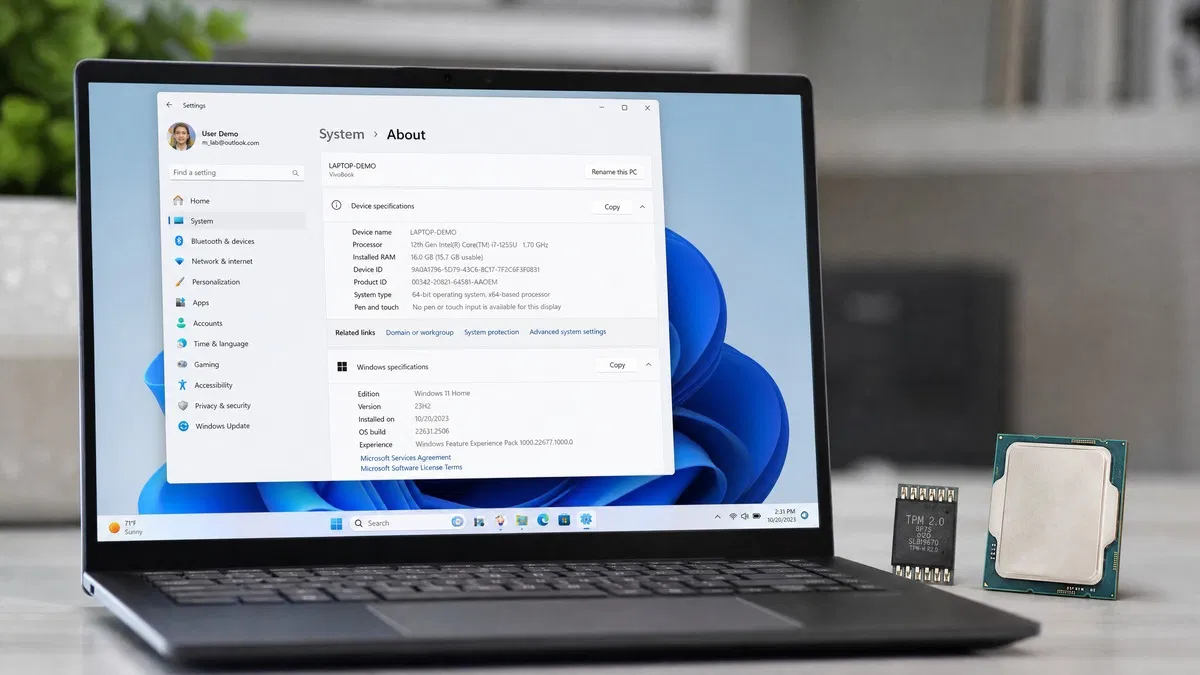
The Windows 11 requirements are a supported 64-bit processor with two or more cores at 1 GHz or faster, 4 GB of RAM, 64 GB of storage, UEFI firmware with Secure Boot, a TPM 2.0 chip, a DirectX 12 graphics adapter and a 720p display larger than 9 inches. Most PCs sold since 2018 pass. Older machines usually fail on the processor list or on a TPM that is present but switched off in the firmware.
What are the Windows 11 minimum requirements?
Microsoft publishes one set of Windows 11 hardware requirements for Home and Pro. These are minimums for installing and booting, not for a pleasant experience, so we have added what we would recommend in a second column.
| Component | Windows 11 minimum requirement | What we recommend |
|---|---|---|
| Processor | 1 GHz or faster, 2 or more cores, 64-bit, on Microsoft’s supported CPU list | Intel 10th gen or newer, AMD Ryzen 3000 or newer |
| Memory | 4 GB | 8 GB for everyday use, 16 GB for gaming or creative work |
| Storage | 64 GB | 256 GB SSD or larger |
| Firmware | UEFI, Secure Boot capable | Secure Boot turned on |
| Security chip | TPM version 2.0 | Same (firmware TPM is fine) |
| Graphics | DirectX 12 compatible with WDDM 2.0 driver | Any GPU from 2016 onward |
| Display | 720p, larger than 9 inches, 8 bits per color channel | 1080p or higher |
| Internet | Required for setup on Home; needed for updates on both | Broadband |
These numbers have not changed since Windows 11 launched in 2021, and the current 24H2 and 25H2 releases use the same list.
Windows 11 CPU requirements: which processors are supported?
The Windows 11 processor requirements trip up more people than anything else. Speed and core count are not the problem. The problem is the list. Microsoft only supports processors that include certain hardware security features, and it publishes the exact models on its Windows processor requirements page on Microsoft Learn.
- Intel: 8th generation Core (Coffee Lake, 2017) and newer, plus a small number of 7th generation chips such as the Core i7-7820HQ, and matching Pentium, Celeron, Xeon and Core Ultra models.
- AMD: Ryzen 2000 series (Zen+, 2018) and newer, Ryzen Threadripper 2000 and newer, EPYC second generation and newer, and matching Athlon models.
- Qualcomm: Snapdragon 850, 7c, 8c, 8cx and Snapdragon X series for Arm laptops.
Anything 32-bit is out. Windows 11 ships only as a 64-bit operating system, so a 32-bit Windows 10 install cannot be upgraded in place. If your CPU is a 7th generation Intel Core i5 or a first generation Ryzen, it will run Windows 11 in practice, but Microsoft does not support it and PC Health Check will fail it.
What are TPM 2.0 and Secure Boot, and how do I check them?
A TPM, or Trusted Platform Module, is a small secure processor that stores encryption keys and measures the boot process. Windows 11 uses it for BitLocker and Windows Hello. Secure Boot is a UEFI firmware feature that only allows signed boot loaders to run, which blocks rootkits that load before Windows does.
Almost every PC built since 2016 has a firmware TPM built into the CPU. Intel calls it PTT and AMD calls it fTPM. It is often switched off by default, which is why so many capable PCs fail the check.
- Press Windows key + R, type
tpm.mscand press Enter. The window should say “The TPM is ready for use” with “Specification Version: 2.0” in the lower right. If it says “Compatible TPM cannot be found”, the chip is off or missing. - Press Windows key + R, type
msinfo32and press Enter. Look for BIOS Mode, which must read UEFI, and Secure Boot State, which should read On. - If either check fails, restart and enter the firmware setup by pressing the key shown at boot (usually Delete, F2, F10 or Esc).
- Find the security or advanced section and turn on Intel PTT, AMD fTPM or Security Device Support. Save and reboot.
- For Secure Boot, the boot section must be in UEFI mode with CSM or Legacy disabled. If Windows 10 is installed on an MBR disk, run
mbr2gpt /convert /allowfullosfrom an administrator Command Prompt first, then switch to UEFI and enable Secure Boot.
How much RAM and storage does Windows 11 need?
The minimum RAM for Windows 11 is 4 GB and the minimum storage is 64 GB. Windows itself takes roughly 25 to 30 GB after installation, and feature updates need free space to stage their files, so a 64 GB drive will spend its life nearly full. We do not recommend less than 8 GB of RAM and a 128 GB SSD. The drive type matters too: a spinning hard drive meets the requirement on paper and disappoints in practice.
How to run PC Health Check
PC Health Check is Microsoft’s free tool that tests every requirement in one click and names the item that fails. Most Windows 10 PCs already have it.
- Click Start, type PC Health Check and open it. If it is missing, download it from Microsoft’s Windows 11 page under the compatibility section.
- Click Check now under “Introducing Windows 11”.
- Read the result. A green check means the PC qualifies. A red result lists the failing items, most often “TPM 2.0 must be supported and enabled” or “The processor isn’t currently supported”.
- Click See all results to view each requirement individually, including Secure Boot, RAM, storage and CPU.
If the only failures are TPM or Secure Boot, follow the firmware steps above and run the check again. Those two are settings, not hardware limits.
What if my PC does not meet the Windows 11 hardware requirements?
Windows 10 reached end of support on October 14, 2025. It still runs, but it no longer receives security fixes unless the PC is enrolled in Microsoft’s Extended Security Updates program, which buys extra time rather than a permanent fix. We covered the options in detail in our post on Windows 10 end of life. In short, you have three sensible paths.
- Fix the settings. If the failure is TPM or Secure Boot, turn them on and upgrade for free from Windows 10. Your existing Windows 10 license carries over.
- Replace the PC. If the processor is not on the list, a new or refurbished machine is the only supported route. You only need a license if it ships without one, or with Home when you want Pro.
- Stay on Windows 10 with ESU. This is a bridge for a year or so while you plan the replacement, not a destination.
Our take: do not pay for a Windows 11 license until PC Health Check passes. Once it does, a Windows 10 PC upgrades free and keeps its activation. You only need a new key for a new build or a bare drive, and in that case Windows 11 Pro at $10.99 or Windows 11 Home at $10.99 covers it. Our Windows 11 download and activation guide walks through creating the USB installer and entering the key.
You can compare every Windows edition we stock on the Windows category page.
Frequently asked questions
Can I install Windows 11 without TPM 2.0?
Microsoft does not support it. There are registry tweaks and third party tools that skip the check during setup, and they usually work, but the resulting install shows a desktop watermark saying system requirements not met, and Microsoft says such PCs are not guaranteed to receive updates. Before going that route, check your firmware: most PCs built since 2016 have a TPM 2.0 built into the CPU that is simply turned off. Turning it on takes two minutes and makes the install fully supported.
Does Windows 11 require a Microsoft account?
Windows 11 Home requires an internet connection and a Microsoft account during initial setup. Windows 11 Pro asks the same during a personal setup, but choosing the work or school option lets you create a local account instead. After setup, either edition can be switched to a local account under Settings, Accounts, Your info. The account requirement is a setup rule, not a hardware requirement, so it does not affect whether your PC can run Windows 11.
Is 4 GB of RAM enough for Windows 11?
4 GB is the minimum needed to install and boot, and it is enough for a single browser tab and light Office work. It is not comfortable. With 4 GB, Windows spends much of its time paging to disk, and a laptop with a hard drive rather than an SSD will feel slow. We consider 8 GB the realistic floor for everyday use and 16 GB the sensible amount for gaming, photo editing or many open tabs.
Are the Windows 11 Pro requirements different from Home?
No. Windows 11 Pro and Windows 11 Home install from the same ISO and share exactly the same hardware requirements: a supported 64-bit CPU, 4 GB of RAM, 64 GB of storage, UEFI with Secure Boot and TPM 2.0. The only hardware related difference appears at the top end, where Pro supports two physical processors and up to 2 TB of RAM against one processor and 128 GB for Home. For any normal PC the check is identical.
Why does PC Health Check say my processor is not supported?
Microsoft maintains a list of approved processors, and CPUs older than roughly Intel 8th generation or AMD Ryzen 2000 are not on it, even when they are fast enough. The app reads your exact CPU model and compares it against that list. If you fail only on the processor, no setting will fix it, since the CPU cannot be changed in a laptop and rarely makes sense to swap in a desktop. Your options are a new PC or staying on Windows 10 with Extended Security Updates.
Your PC passed? Get the license sorted
Genuine retail Windows 11 keys, delivered by email in minutes, with a step by step guide for a clean install on your new or upgraded machine.