Windows 11 Home vs Pro comes down to a short list of business features: BitLocker drive encryption, Remote Desktop hosting, Hyper-V virtualization, Group Policy and domain join. Everything else, from performance and gaming to updates and app compatibility, is identical in both editions. Most home users are fine with Home; anyone who works from the PC, manages more than one machine or needs full disk encryption should buy Pro.
What is the difference between Windows 11 Home and Pro?
Both editions are built from the same code. Microsoft ships one Windows 11 image, and the product key decides which features are switched on. The Windows Pro vs Home table below lists every difference that matters in day to day use. If a feature is not on this list, it works the same way in both editions.
| Feature | Windows 11 Home | Windows 11 Pro |
|---|---|---|
| BitLocker drive encryption | Device encryption only (system drive, supported hardware) | Full BitLocker, BitLocker To Go, manage-bde |
| Remote Desktop | Client only | Client and host |
| Hyper-V virtual machines | No | Yes |
| Windows Sandbox | No | Yes |
| Group Policy Editor (gpedit.msc) | No | Yes |
| Domain join and Microsoft Entra ID join | No | Yes |
| Assigned Access (kiosk mode) | No | Yes |
| Windows Update for Business controls | Pause up to 5 weeks | Defer feature updates, targeted rings |
| Maximum RAM | 128 GB | 2 TB |
| Physical processors | 1 | 2 |
| Gaming features (Game Mode, Auto HDR, DirectStorage) | Yes | Yes |
| Copilot, Snap layouts, Widgets, Android apps | Yes | Yes |
| Microsoft Store list price | 139.99 USD | 199.99 USD |
Windows 11 Pro vs Home: the five features people actually buy Pro for
BitLocker
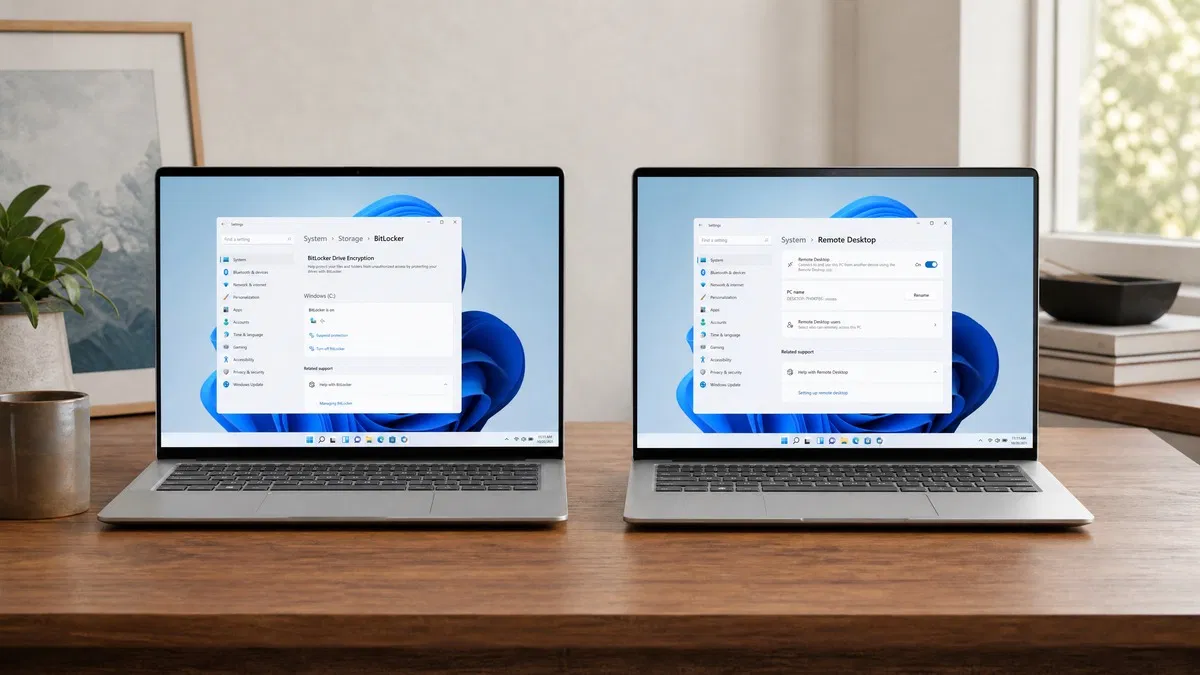
Pro lets you encrypt any drive, including external USB drives, and gives you a recovery key you control. Home has a lighter version called Device encryption. It protects the system drive on laptops that meet the hardware bar, but it turns on only when you sign in with a Microsoft account, and it offers no control over which drives get encrypted. If you carry client data on a laptop, Pro is the safer edition.
Remote Desktop host
A Pro PC can be controlled from another computer over the network using the Remote Desktop protocol built into Windows. Home can only be the one doing the connecting. People who leave a desktop at home and want to reach it from a laptop, or IT staff who support family PCs, notice this gap quickly.
Hyper-V and Windows Sandbox
Hyper-V runs full virtual machines. Windows Sandbox opens a throwaway copy of Windows so you can test a suspicious file and discard everything afterwards. Both need Pro. VirtualBox runs on Home, so this is a convenience gap rather than a hard wall.
Group Policy
The Local Group Policy Editor exposes thousands of settings in one place: block driver updates, control what Windows Update does, restrict which apps run. On Home you either hunt for the matching registry key or live without the setting.
Domain and Entra ID join
If a PC will be managed by a company, it needs Pro. Domain join and Entra ID join are not available on Home at all. Small businesses often buy Home laptops on sale and then find they cannot enroll them.
What Windows 11 Home and Pro share
Both editions get the same monthly security updates and the same yearly feature updates, so a Home PC is never behind a Pro PC. Both run the same Office, Adobe and Steam installs, and driver support is identical because manufacturers write one driver for Windows 11, not one per edition. Windows Hello, Microsoft Defender, Secure Boot and the firewall are in both.
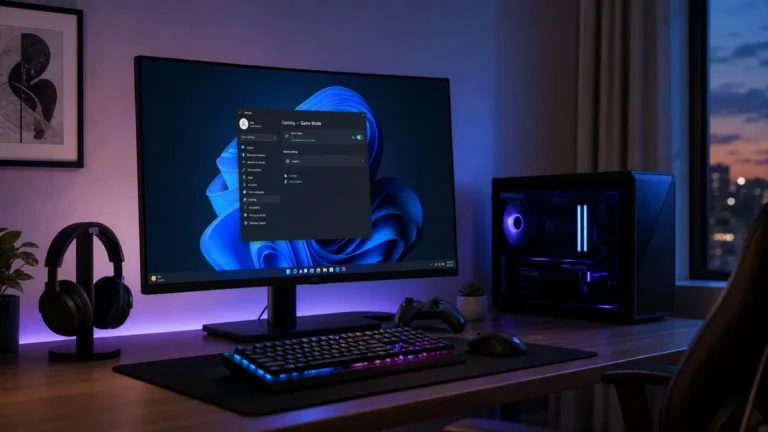
Gaming is the most common question we get, and the answer is short: Game Mode, Auto HDR, DirectStorage, variable refresh rate and the Xbox app are all in Home. We tested this question in more depth in our post on Windows 11 Home vs Pro for gaming. Frame rates do not change with the edition.
Should I get Windows 11 Home or Pro?
Here is how we answer the question when customers ask us directly.
- Choose Home if the PC is for browsing, streaming, gaming, school work and Office, you sign in with a Microsoft account, and nobody else needs to connect to the machine remotely.
- Choose Pro if you work from the PC and store client or company data on it, you want to reach it from elsewhere with Remote Desktop, you run virtual machines, you need Group Policy, or the PC will join a company domain.
- Choose Pro if the machine has more than 128 GB of RAM or a dual socket motherboard. Home simply cannot use the extra hardware.
Our take: the price gap between Windows 11 Home at $10.99 and Windows 11 Pro at $10.99 is small enough at OfficeGSM that we usually tell people to take Pro unless the PC is strictly a family or gaming machine. BitLocker and Remote Desktop alone are worth it the first time a laptop goes missing or you need a file from home while traveling.
Windows 11 Home vs Pro vs Retail: what does retail mean here?
Home and Pro are editions. Retail, OEM and Volume are license types, and any edition can come with any of them. A retail license is bought separately from the hardware and can be moved to a new PC after you remove it from the old one. An OEM license is tied to the first motherboard it activates on and dies with that PC. Volume licenses belong to organizations.
When a listing says Windows 11 Pro Retail, the seller means a transferable Pro key. The keys we sell at OfficeGSM are retail, so they move with you to your next build. We cover the practical differences in our post on OEM vs retail Windows licenses.
How to upgrade from Windows 11 Home to Pro
You do not need to reinstall Windows or lose anything. A Pro key, or a dedicated Windows 11 Home to Pro upgrade key, switches the edition in place.
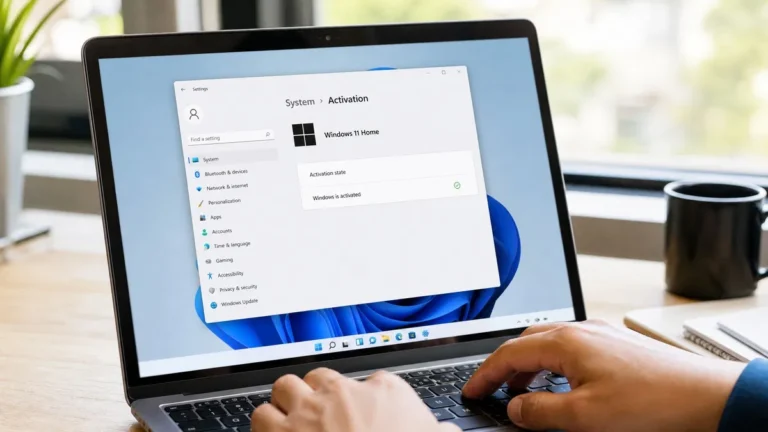
- Open Settings, then System, then Activation.
- Expand Upgrade your edition of Windows and click Change product key.
- Enter the 25 character Pro key and click Next, then Start.
- Wait while Windows adds the Pro components. The screen says “Upgrading your edition of Windows” and the PC restarts on its own.
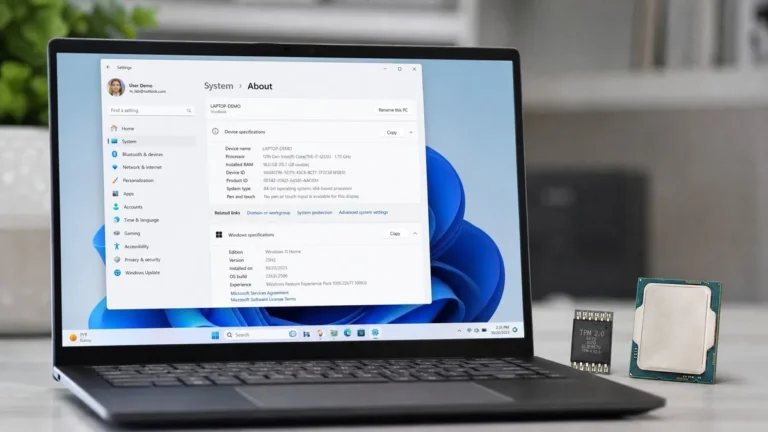
- Sign back in and open Settings, System, About. The Edition line should now read Windows 11 Pro, and Activation should say “Windows is activated with a digital license”.
If the PC is offline, the same screen offers a phone activation route, covered in our Windows 11 Pro download and activation guide. For a clean install, download the ISO from Microsoft’s Windows 11 download page, pick Pro at the edition prompt, and enter the key when asked. Microsoft’s own Home vs Pro comparison page lists the same feature split.
Browse every edition we stock, including Windows 10 and Windows Server, on our Windows license category page.
Frequently asked questions
Is Windows 11 Pro faster than Windows 11 Home?
No. Both editions share the same kernel, the same drivers, the same scheduler and the same update cadence. Benchmarks in games, browsers and Office land within normal run to run variation. Pro only pulls ahead in one scenario: a workstation with more than 128 GB of RAM or two physical processors, because Home caps out there. On a normal desktop or laptop, the edition you pick has no measurable effect on speed, battery life or boot time.
Can I upgrade from Windows 11 Home to Pro without reinstalling?
Yes. Open Settings, go to System, then Activation, and choose Change product key under Upgrade your edition of Windows. Enter a Windows 11 Pro key or a dedicated Home to Pro upgrade key. Windows downloads the extra Pro components, restarts once or twice, and you come back to the same desktop, files and programs with Pro features switched on. The whole process usually takes under 20 minutes and does not touch your data.
Does Windows 11 Home have BitLocker?
Not the full version. Home offers Device encryption, which turns on automatically on hardware with TPM 2.0 and Modern Standby support and protects the system drive. It has no manage-bde command line, no BitLocker To Go for USB drives, no policy control and no option to encrypt secondary drives one by one. If you need any of that, you need Pro. Home users who just want the laptop drive protected against theft usually find Device encryption enough.
Do I need Windows 11 Pro for Remote Desktop?
Only if the PC is the one being connected to. Both Home and Pro include the Remote Desktop client, so a Home laptop can connect to a Pro desktop or a work server. Home cannot act as the host. If you want to sit at another machine and control your home PC through the built in Remote Desktop protocol, that PC needs Pro. Third party tools such as Chrome Remote Desktop work on Home but are a different experience.
Can I join a Windows 11 Home PC to a company domain?
No. Domain join, Microsoft Entra ID join and Group Policy management are Pro features. A Home PC can still sign in to a Microsoft 365 account inside apps like Outlook and Teams, and it can be enrolled in some mobile device management tools, but it cannot become a member of an Active Directory domain. If your IT department asks you to join the domain, they are asking for Pro.
Ready to pick your edition?
Genuine retail keys for Windows 11 Home and Pro, delivered by email within minutes, with our team on hand if activation gives you any trouble.