How to activate Microsoft Office depends on which edition you bought. Professional Plus and LTSC keys (Office 2016, 2019, 2021 and 2024 Pro Plus or Standard) are activated inside the apps: open Word, go to File > Account, click Change Product Key, enter the 25-character key and click Activate. Consumer editions (Home and Student, Home and Business, Office Home 2024) and every Mac version are redeemed instead at setup.office.com with a Microsoft account, after which you download the installer from that account and sign in once. Get the route right and Microsoft Office activation takes two minutes; get it wrong and a valid key shows “Unlicensed Product”.
Which activation route does your key use?
Microsoft uses two separate systems for perpetual Office licenses, and a key only works in the system it was issued for. Your order email tells you which applies; the table makes the split clear.
| Professional Plus and LTSC (Windows) | Home and Student, Home and Business, Office Home (Windows and Mac) | |
|---|---|---|
| Products | Office 2016, 2019, 2021, 2024 Professional Plus; Office LTSC 2021 and 2024 Standard | All Home and Student and Home and Business editions; every Office for Mac |
| Installer | Linked in your order email (official Microsoft download) | Downloaded from your Microsoft account after redeeming the key |
| Where to enter the key | File > Account > Change Product Key | setup.office.com |
| Microsoft account required | No | Yes |
| Fallback if online activation fails | Telephone activation with a Confirmation ID | Microsoft account support |
| Example | Office 2024 Professional Plus, Office 2021 Professional Plus | Office 2021 Home and Business for Mac |
How to activate Microsoft Office with product key in File > Account (Pro Plus and LTSC)
This is the route for the Office 2024 and Office 2021 Professional Plus keys we sell, and for Office LTSC Standard. Microsoft Office key activation here needs no Microsoft account.
- Uninstall any existing Office installation, including trials that came with the PC, through Settings > Apps > Installed apps, then restart.
- Open your order email and click the installer link. It downloads the official Microsoft setup for your exact edition. Run it and wait for “You’re all set”.
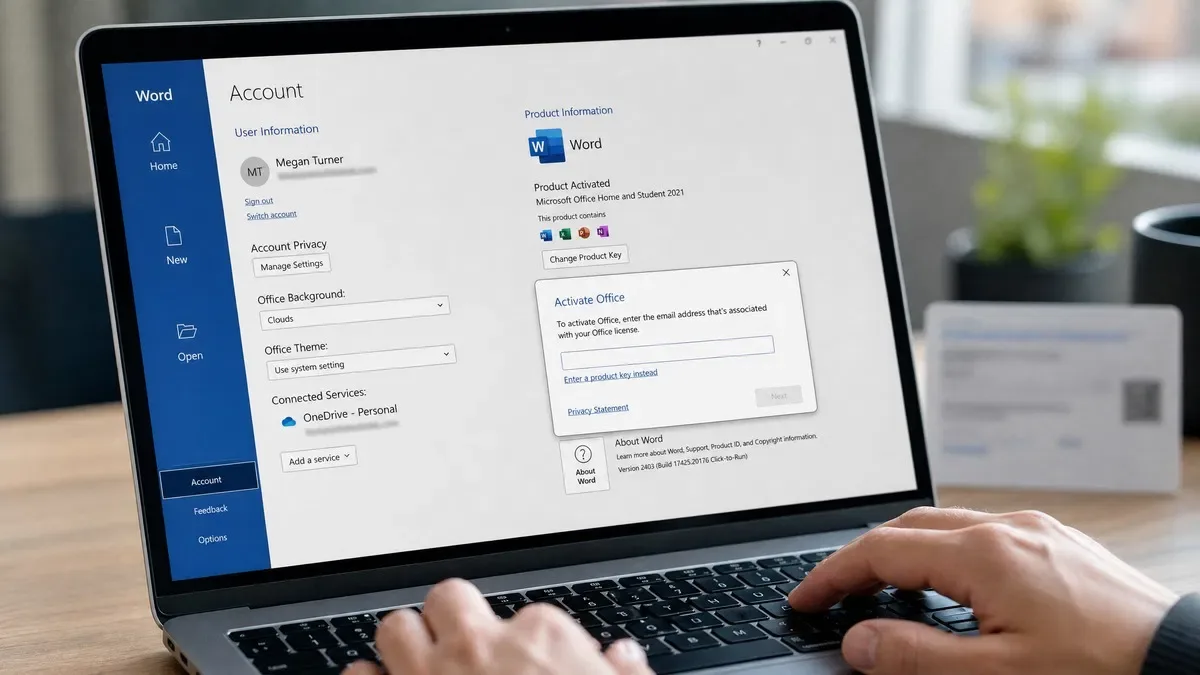
- Open Word. If an Activation Wizard appears immediately, enter the key there. Otherwise click File, then Account.
- Under Product Information, click Change Product Key. A small dialog opens.
- Type or paste the 25-character key from your email, including the hyphens, and click Activate Office (older versions say Continue).
- Wait a few seconds. The Account page should now read Product Activated above the product name, for example “Microsoft Office LTSC Professional Plus 2024”.
Each step, with a screenshot, is in our Office 2024 Professional Plus download and activation guide. The process is identical for Office 2021, 2019 and 2016 Pro Plus. If you are still deciding between a perpetual key and a subscription, see Office 2024 vs Microsoft 365.
How to activate a Microsoft Office product key at setup.office.com
Consumer editions and every version of Office for Mac use Microsoft’s redemption site rather than the Change Product Key dialog. A Home and Business key entered in File > Account will fail even though it is genuine.
- Go to setup.office.com and click Sign in. Use an existing Microsoft account or create a free one; it becomes the permanent home of the license.
- Enter the 25-character product key and choose your country and language. Click Next.
- The site confirms the product name. Click Next to reach the Services and subscriptions page of your account.
- Click Install next to the Office product. On Windows this downloads OfficeSetup.exe; on a Mac it downloads a .pkg installer.
- Run the installer. When it finishes, open Word and sign in with the same Microsoft account when prompted.
- Word finds the license on the account and activates. The yellow “Activate” bar disappears.
Reinstalling later is done from account.microsoft.com rather than by re-entering the key. Microsoft documents the flow on its Office support site.
Unlicensed Product: what it means and how to clear it
A red bar reading “Unlicensed Product” or “Product Activation Failed” means the apps have no valid license attached and have dropped into read-only mode. Work through these causes in order:
- Wrong edition. File > Account shows the installed product name. If it says Microsoft 365 or Home and Business but your key is Professional Plus (or the reverse), uninstall and install the matching edition from your order email.
- Two Office versions installed. Remove any second Office or Microsoft 365 entry in Settings > Apps, restart and repeat Change Product Key.
- No connection to the activation server. Firewalls and VPNs can block it. Disconnect the VPN and retry; if it still fails use telephone activation.
- Wrong system date. Activation fails if the PC clock is far off. Set it to sync automatically in Settings > Time and language.
Error 0xC004C020 and other activation codes
| Code or message | Meaning | What to do |
|---|---|---|
| 0xC004C020 | The key has reached its activation limit on Microsoft’s servers | Stop retrying. Contact us with your order number for a check and, if eligible, a replacement or telephone activation |
| 0xC004C008 | The key is in use on another computer | Deactivate it there or contact us; one key covers one PC |
| 0xC004F074 | Office is looking for a KMS server that does not exist | Wrong installer; use the one from your order email and enter the key |
| 0x80070005 | Access denied during activation | Run Word as administrator once and retry |
| “This product key has already been used” at setup.office.com | The consumer key was already redeemed into a Microsoft account | Sign in to that account and install from Services and subscriptions; if you never redeemed it, contact us |
Our take: when a genuine key fails, the cause is almost always an edition mismatch or a second Office install, not a bad key. Check File > Account first, remove any other Office copy, restart, and try again. If you see 0xC004C020, stop clicking Activate; every attempt is logged. Send us your order number and the error code and we will sort it out.
Telephone activation and the Confirmation ID
Professional Plus and LTSC editions include a telephone fallback for PCs that cannot reach Microsoft’s activation servers. It works like this:
- Enter the key in File > Account > Change Product Key and let the online attempt fail. The Activation Wizard then offers I want to activate the software by telephone. Choose it.
- The wizard displays an Installation ID: nine groups of digits. Write it down or take a photo.
- Obtain a Confirmation ID: call Microsoft’s activation line for your country and read the Installation ID to the automated system, or send it to us through our Microsoft confirmation ID service and we return the code, typically within a few hours.
- Type the Confirmation ID (eight groups of six digits) into the wizard and click Activate. The Account page should now read Product Activated.
Consumer editions redeemed at setup.office.com do not have this option; their activation lives in the Microsoft account. Every edition we carry, with its activation route stated, is on the Microsoft Office category page.
Frequently asked questions
How do I activate Microsoft Office with a product key?
It depends on the edition. For Office Professional Plus and Office LTSC (2016, 2019, 2021, 2024 Pro Plus or Standard), install from the official installer, open Word, go to File > Account, click Change Product Key, enter the 25-character key and click Activate. For consumer editions (Home and Student, Home and Business, Office Home 2024) and every Mac version, go to setup.office.com, sign in with a Microsoft account, enter the key, then download and install from that account. Sign in to Word once and it is activated. Using the wrong route is the most common reason a valid key seems not to work.
Why does Office say Unlicensed Product after I entered my key?
Usually because the key was entered into the wrong edition. A Professional Plus key will not activate Office Home and Business, and a Home and Business key cannot be typed into a Pro Plus install. Check File > Account: the product name shown there must match the edition your key was sold for. Other causes are a trial or older Office still installed alongside the new one, a firewall blocking the activation servers, or a wrong PC clock. Uninstall other Office copies, restart, fix the clock and try again.
What does error 0xC004C020 mean in Office activation?
Error 0xC004C020 means the activation server reports that the key has reached its activation limit. Each Office key is licensed for a set number of installations, usually one PC for the keys we sell, and Microsoft’s servers count every successful activation. You see it if the same key was activated on another machine, or if repeated reinstalls each counted. Do not keep retrying. Contact us with your order number and we will check the key’s history and, where the terms allow, issue a replacement or walk you through telephone activation with a confirmation ID.
Can I activate Office by phone if online activation fails?
Yes, for Professional Plus and LTSC editions. When online activation fails, the Activation Wizard offers telephone activation. Choose it, and Office displays a nine-group Installation ID. Microsoft’s automated phone line reads that ID and returns a Confirmation ID, which you type into the wizard. Because the phone line can be slow in some countries, OfficeGSM offers a confirmation ID service: send us your Installation ID and we return the Confirmation ID, typically within a few hours. Consumer editions redeemed at setup.office.com do not use this route.
Activate in two minutes
Office 2024 Professional Plus: install from the official link in your order email, enter the key in File > Account, done. No Microsoft account required, supported until October 2029.