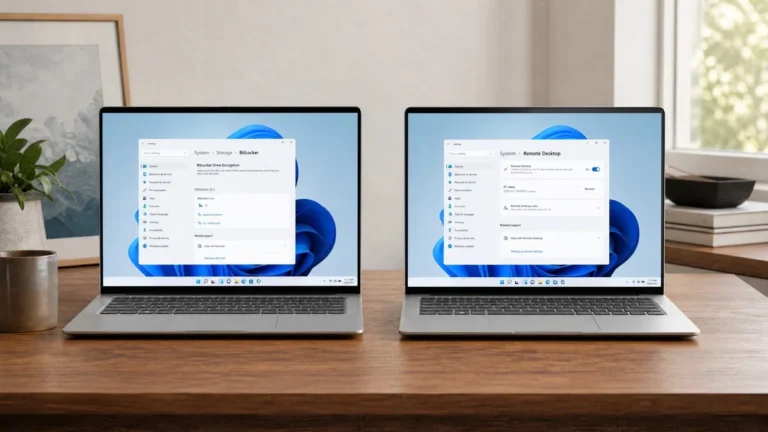
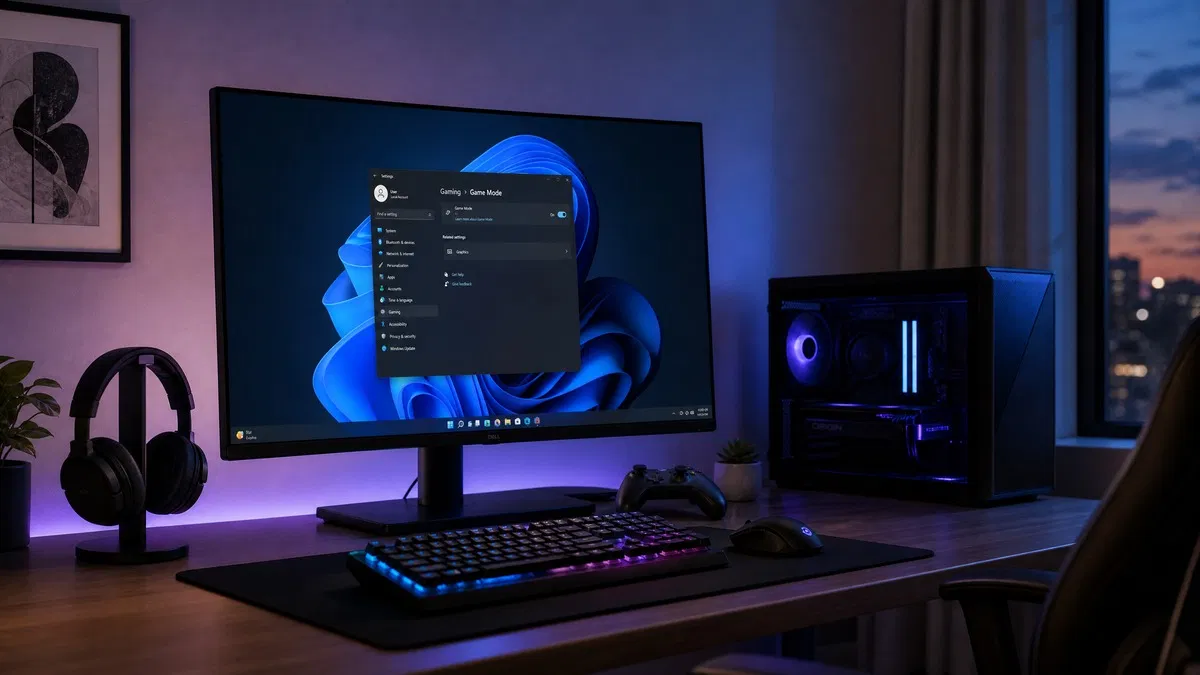
For Windows 11 Home vs Pro for gaming, the short answer is that there is no gaming difference at all. Game Mode, DirectStorage, Auto HDR, variable refresh rate, DirectX 12 Ultimate and the Xbox app are in both editions, and frame rates are identical. Pro adds business tools such as BitLocker, Remote Desktop hosting and Hyper-V, which help some gamers indirectly but never make a game run faster.
Does Windows 11 Pro run games faster than Home?
No, and it is not close. Microsoft builds one Windows 11 and switches features on or off based on the product key. The graphics stack, the scheduler, memory management and the DirectX runtime are the same files on both editions. A GPU driver from NVIDIA, AMD or Intel installs the same way on Home and Pro because the manufacturer does not know or care which edition you run.
When people report a performance gap between two PCs, the cause is always something else: a different GPU driver version, a background app, an HDD instead of an SSD, or virtualization based security. That last one is worth knowing about. Windows 11 turns on memory integrity by default on new installs, and it can cost a few percent in some games. It does so on Home and Pro alike, and you can switch it off under Windows Security, Device security, Core isolation on either edition.
Windows 11 Pro vs Home for gaming: the feature checklist
Here is every feature a gamer might look for, and where it lives.
| Gaming feature | Windows 11 Home | Windows 11 Pro | What it actually needs |
|---|---|---|---|
| Game Mode | Yes | Yes | Nothing extra |
| DirectStorage | Yes | Yes | NVMe SSD, DX12 Ultimate GPU, a game that uses it |
| Auto HDR | Yes | Yes | HDR display with HDR turned on |
| Variable refresh rate | Yes | Yes | G-Sync or FreeSync monitor |
| DirectX 12 Ultimate (ray tracing, mesh shaders) | Yes | Yes | Supported GPU |
| Xbox app, Game Pass, Xbox Game Bar | Yes | Yes | Microsoft account |
| Hardware accelerated GPU scheduling | Yes | Yes | Supported GPU and driver |
| Maximum RAM | 128 GB | 2 TB | Only matters above 128 GB |
| Remote Desktop host | No | Yes | Not useful for games; use streaming tools |
| Hyper-V, BitLocker, Group Policy | No | Yes | Unrelated to gaming |
Game Mode, DirectStorage and Auto HDR explained
Game Mode
Game Mode is a set of priorities Windows applies while a game is in the foreground. Windows Update stops installing drivers and postpones restart notifications, and the game gets first call on CPU and GPU time. It has been in Windows since 2017 and lives at Settings, Gaming, Game Mode on every edition. If a specific title stutters with it on, turn it off and test again.
DirectStorage
DirectStorage lets a game read compressed assets from an NVMe drive and hand them to the GPU for decompression, cutting load times and reducing pop in. It is a DirectX 12 API, so the game has to be written for it. Titles such as Forspoken and Ratchet and Clank: Rift Apart on PC use it. Your Windows edition does not matter. Your drive does: a SATA SSD or a hard drive falls back to the traditional path.
Auto HDR
Auto HDR takes DirectX 11 and 12 games built for standard dynamic range and expands their brightness and color for an HDR screen. It came to PC from the Xbox Series consoles and needs an HDR capable monitor with HDR switched on under Settings, System, Display. The toggle sits in the same place on Home and Pro.
What is the difference between Windows 11 and Windows 11 Pro, then?
People often say Windows 11 when they mean Windows 11 Home, since that is what most consumer PCs ship with. The gap between Home and Pro is a set of business features: full BitLocker encryption, Remote Desktop hosting, Hyper-V virtual machines, Windows Sandbox, the Local Group Policy Editor, domain join, and support for two physical CPUs and up to 2 TB of RAM. Our full Windows 11 Home vs Pro comparison walks through each one.
A few of those help gamers indirectly. Hyper-V is useful if you tinker with game servers or run a second OS for modding tools. Group Policy lets you stop Windows Update from ever pulling a graphics driver over the one you installed. BitLocker protects a laptop that leaves the house. None of them touch frame rates, load times or input latency.
Windows 11 Pro requirements: does Pro need a stronger PC?
No. Windows 11 Pro requirements are identical to Home: a supported 64-bit processor, 4 GB of RAM, 64 GB of storage, UEFI firmware with Secure Boot, and TPM 2.0. Both editions install from the same ISO, and the edition you get is decided by the key you enter or the choice you make at the setup screen. Our Windows 11 requirements guide covers how to check each item.
For gaming, the numbers that matter are different from the minimum spec. We would call 16 GB of RAM the practical floor for current titles, an NVMe SSD the sensible place to install games that support DirectStorage, and a DirectX 12 Ultimate card the ticket to ray tracing and mesh shaders. Microsoft lists the official minimums on its Windows 11 specifications page.
Windows 11 Home or Pro: which should a gamer buy?
Our take: if the PC is for games, buy Windows 11 Home. It has every gaming feature Pro has, and at $10.99 it leaves more of the budget for the GPU. Pick Windows 11 Pro only if the same machine doubles as your work PC, you want BitLocker on a gaming laptop, or you need Hyper-V. At OfficeGSM the price gap is small, so choose based on those features rather than on any hope of extra frames.
Once Windows is installed and activated, take five minutes to confirm the gaming features are on. This is the same on either edition.
- Open Settings, Gaming, Game Mode and make sure the toggle is on.
- Go to Settings, System, Display, select your monitor, open HDR and turn on Use HDR and Auto HDR if the display supports it.
- Open the Xbox app, choose Settings, then Gaming features. The page lists whether DirectStorage, Auto HDR, VRR and HAGS are supported on your hardware and tells you what is missing.
- Under Settings, System, Display, Graphics, Change default graphics settings, turn on Hardware-accelerated GPU scheduling and Variable refresh rate if they appear.
- Check Windows Security, Device security, Core isolation. If memory integrity is on and a game runs poorly, try it off and compare.
For install and activation steps, our Windows 11 download and activation guide applies to both editions, and Microsoft’s Windows gaming features support page explains what the Xbox app is checking. You can compare every Windows edition we sell on the Windows category page.
Frequently asked questions
Does Windows 11 Pro give more FPS than Home?
No. Frame rates depend on the GPU, CPU, drivers and the game itself, not on the Windows edition. Home and Pro use the same kernel, the same DirectX runtime, the same graphics driver model and the same scheduler. Any difference you measure between two machines running Home and Pro comes from hardware, background apps or settings such as virtualization based security, which exists in both editions. Buying Pro purely to gain performance is money spent for nothing.
Is Game Mode available on Windows 11 Home?
Yes. Game Mode is part of every Windows 11 edition and is switched on by default. Find it under Settings, Gaming, Game Mode. When a game is in the foreground, Windows holds back driver installs and most update restarts and gives the game priority for CPU and GPU time. You can turn it off from the same page if you suspect it is causing stutter in a particular title, which occasionally happens with older games.
Do I need Windows 11 Pro for DirectStorage?
No. DirectStorage is a DirectX 12 feature available on Home and Pro alike. What it needs is hardware: an NVMe SSD holding the game, a graphics card that supports DirectX 12 Ultimate with Shader Model 6.0, and a game built to use the API. Open the Xbox app, go to Settings, Gaming features, and it will tell you whether your PC meets the requirements. The Windows edition is never the blocker.
Does Auto HDR work on Windows 11 Home?
Yes. Auto HDR is in both editions. It needs an HDR capable monitor or TV connected over a cable and port that support HDR, with HDR turned on under Settings, System, Display. Once that is set, Auto HDR adds a wider range of brightness and color to DirectX 11 and 12 games that were built for SDR. There is no Pro only toggle anywhere in the HDR settings.
Can I stream or remote into my gaming PC from Windows 11 Home?
You can stream. Steam Remote Play, Moonlight with Sunshine, Parsec and the Xbox app all run on Home. What Home lacks is the ability to act as a Remote Desktop host, so the built in Windows remote connection will not let you log in to a Home PC from another machine. For gaming this rarely matters, since Remote Desktop is a poor fit for games anyway. Pick a streaming tool instead.
Build the gaming PC, skip the Pro tax
A genuine retail Windows 11 Home key gives you every gaming feature Windows offers, delivered by email in minutes.