
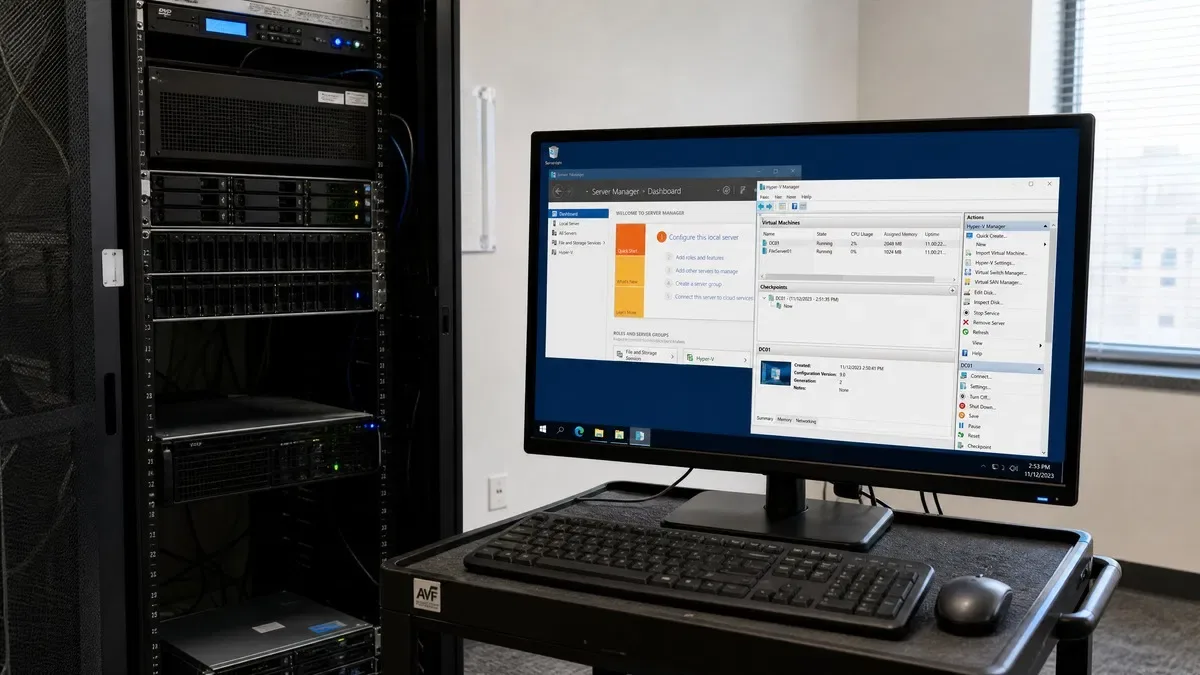
To compare Windows Server versions you need two axes at once: the release year, which sets the feature set and the support end date, and the edition, which sets how many virtual machines you may run. Windows Server 2025 is the current release, supported into 2034, in Essentials, Standard and Datacenter editions. Server 2022 remains a sound choice through extended support to October 2031, while 2019 and 2016 receive security fixes only and should not be chosen for new deployments.
Windows Server 2016 vs 2019 vs 2022 vs 2025: release and support dates
Each release gets five years of mainstream support, with new features and non-security fixes, then five years of extended support with security updates only. Exact dates are on Microsoft’s lifecycle site.
| Version | General availability | Mainstream support ends | Extended support ends | Status for new builds |
|---|---|---|---|---|
| Windows Server 2025 | November 2024 | October 2029 | October 2034 | Recommended |
| Windows Server 2022 | August 2021 | October 13, 2026 | October 14, 2031 | Still a good choice |
| Windows Server 2019 | October 2018 | Ended January 2024 | January 2029 | Existing deployments only |
| Windows Server 2016 | October 2016 | Ended January 2022 | Early 2027 | Plan the migration now |
Two takeaways. Server 2022 has only weeks of mainstream support left, so a new install should be 2025 unless you must match an existing cluster or a vendor certification. And Server 2016 runs out of security updates in early 2027; anything still on it needs a migration plan this year.
What changed in each Windows Server version?
The kernel, roles and management tools carry forward release to release, so a 2016 administrator will be at home on 2025. Here is the short list of features that changed how people build servers.
Windows Server 2016
The release that introduced per core licensing, Nano Server, Windows containers, Storage Spaces Direct and shielded VMs. It was also the first version whose Datacenter edition differed from Standard on features rather than just VM count, and the last whose Essentials edition included the Essentials Experience dashboard role.
Windows Server 2019
Windows Admin Center replaced much of Server Manager in daily use. Storage Migration Service made it practical to move old file servers, System Insights added predictive analytics for capacity, and Kubernetes support for Windows containers arrived.
Windows Server 2022
Secured-core server brought firmware protection and virtualization-based security, TLS 1.3 became the default, and SMB gained AES-256 encryption. SMB over QUIC, which lets file shares work over the internet without a VPN, shipped only in the Azure Edition of Datacenter.
Windows Server 2025
The largest set of changes since 2016. Hotpatching, which installs security updates without a reboot, comes to Standard and Datacenter on premises as a subscription through Azure Arc. SMB over QUIC is in every edition. Active Directory gains a 32 KB database page size, Hyper-V lifts per-VM limits to 2,048 virtual processors and 240 TB of memory, and GPU partitioning lets several VMs share one card. The shell follows the Windows 11 design, and winget is built in. Full notes are in What’s new in Windows Server 2025.
Essentials vs Standard vs Datacenter: the three editions
Whatever the release year, the split between editions is about scale and virtualization rather than raw capability.
| Essentials | Standard | Datacenter | |
|---|---|---|---|
| Who it is for | Small business, first server | Physical servers and light virtualization | Dense virtualization, hyper-converged clusters |
| Licensing | Per server, OEM only, 1 processor up to 10 cores | Per core, 16-core minimum | Per core, 16-core minimum |
| User limit | 25 users or 50 devices | Unlimited with CALs | Unlimited with CALs |
| CALs required | No | Yes | Yes |
| Windows Server VMs | Runs as host or one VM | 2 per license | Unlimited |
| Storage Spaces Direct, SDN, shielded VMs | No | No | Yes |
| Available at retail | No, preinstalled by OEMs | Yes | Yes |
Essentials is a fine product, but since Server 2022 it ships only preinstalled by Dell, HPE, Lenovo and similar vendors, capped at one CPU with ten cores. Once a business passes 25 users it has to move to Standard and buy CALs. Standard and Datacenter are the editions you can buy as a license key; our Standard vs Datacenter comparison covers the VM math, Hyper-V and the DISM edition upgrade. There is also Datacenter: Azure Edition, which runs only on Azure and Azure Local and got hotpatching and SMB over QUIC first.
Which Windows Server version should you buy in 2026?
For nearly every new deployment the answer is Windows Server 2025 Standard. It has the longest support runway, it is the only release with hotpatching outside Azure, and its requirements are modest: a 1.4 GHz 64-bit processor with SSE4.2 and POPCNT, 512 MB of RAM for Server Core or 2 GB with Desktop Experience, and 32 GB of disk. Older CPUs that lack POPCNT refuse to install 2025, which is the one common reason people fall back to Windows Server 2022 Standard. The other reasons are vendors that have not certified on 2025 and mixed clusters, since every node should run the same version. Both releases are on our Windows Server category page.
Our take: Buy Windows Server 2025 Standard for any new physical server or a host with one or two VMs, and Datacenter when the VM count climbs past a dozen. Choose 2022 only to match an existing cluster or a vendor requirement. Do not deploy 2019 or 2016 for anything new; they are in extended support, receive security fixes only, and 2016 stops even those in early 2027.
How to upgrade from an older Windows Server version
Microsoft supports in-place upgrades across up to two releases, so 2016 can move to 2019 or 2022, 2019 to 2022 or 2025, and 2022 to 2025. A clean install with a migration of roles is often less trouble on domain controllers, but the in-place route works well on application servers.
- Take a full backup or a VM checkpoint, and save the output of
Get-WindowsFeaturefor comparison afterward. - Install all pending updates on the current server and reboot.
- Check your applications and drivers against the target release.
- Mount the Windows Server 2025 ISO and run
setup.exefrom the root of the media while logged in to the running server. - Enter your product key when prompted, choose the same edition you are running, and select Keep files, settings and apps.
- Let the upgrade run through several restarts, then activate in Settings, System, Activation if it did not activate automatically.
- Rerun
Get-WindowsFeatureand compare. Update Windows Admin Center and any agents.
The installer will not change edition and version in one step; upgrade the version first, then change the edition with DISM. Our Windows Server 2025 Standard download and activation guide covers where to get the ISO and how activation behaves on a fresh install.
Different types of Windows Server: a note on Server Core and Desktop Experience
Every version from 2016 onward installs in one of two modes. Server Core has no desktop, a smaller footprint and fewer patches, and is managed through Windows Admin Center, PowerShell or RSAT. Desktop Experience adds the full Windows shell. The license is the same either way; you pick at setup, and you cannot switch afterward without a reinstall. For a domain controller, DNS or Hyper-V host, Server Core is the better default. For a line-of-business application with a GUI installer, choose Desktop Experience.
Frequently asked questions
Which Windows Server version is the latest?
Windows Server 2025 is the current release, generally available since November 2024. It replaces Windows Server 2022 as the version Microsoft recommends for new deployments, with mainstream support running to October 2029 and extended support to October 2034. It ships in Essentials, Standard and Datacenter editions, plus a Datacenter: Azure Edition that runs only in Azure and on Azure Local. Feature highlights include hotpatching through Azure Arc, SMB over QUIC in all editions and a refreshed Active Directory.
When does support end for Windows Server 2022, 2019 and 2016?
Windows Server 2022 leaves mainstream support on October 13, 2026 and extended support on October 14, 2031. Windows Server 2019 ended mainstream support in January 2024 and receives security updates until January 2029. Windows Server 2016 ended mainstream support in January 2022 and its extended support finishes in early 2027. After extended support ends, no further security updates are released unless a paid Extended Security Updates program is available for that release.
What is the difference between Windows Server Essentials, Standard and Datacenter?
Essentials is a small-business edition sold only preinstalled by hardware makers, limited to one processor with up to 10 cores and 25 users or 50 devices, and it needs no client access licenses. Standard is licensed per core with a 16-core minimum, requires CALs, and allows two Windows Server virtual machines per license. Datacenter uses the same core licensing but allows unlimited VMs and adds Storage Spaces Direct, software-defined networking and shielded virtual machines.
Can I upgrade Windows Server 2016 directly to 2025?
No. Microsoft supports in-place upgrades across at most two releases, so Windows Server 2016 can go to 2019 or 2022 but not straight to 2025. You would upgrade to 2022 first and then to 2025, or perform a clean installation of 2025 and migrate roles and data, which is frequently the cleaner approach for a server that old. Windows Server 2019 and 2022 can both upgrade in place to 2025 while keeping files, settings and applications.
Is Windows Server 2022 still worth buying?
Yes, in specific cases. Server 2022 receives security updates until October 2031, so it is a safe platform for years. It makes sense when you are adding a node to an existing 2022 cluster, when a software vendor has not yet certified its product on 2025, or when older hardware lacks the POPCNT instruction that Server 2025 requires. For a new standalone server with no such constraints, Windows Server 2025 is the better long-term purchase.
License the current Windows Server release
Windows Server 2025 Standard from OfficeGSM: a genuine retail key delivered by email within minutes, with a step-by-step download and activation guide.